Marker Customization
This interactive example lets you build markers with full control over every visual property, including three different image sources.
Overview
The MarkerCustomizationExample provides sliders, chips, and toggles for every LzAttributeMarker property so you can experiment in real time:
- Image source — built-in icons, Flutter Material Icons, or remote PNG URLs
- Icon color & size — any hex color, 10–80 px
- Opacity — 0.1 to 1.0
- Text font size & color — 8–24 px, multiple colors
- Text halo — outline color, width, and blur
- Behavior — draggable, flat (rotates with map)
Image Sources
The SDK supports three ways to provide a marker icon. The demo app (marker_management_widget.dart) groups them as Built-in, URL, and Flutter.
1. Built-in Icons (Predefined)
Pass a known icon name as the first argument. These icons are bundled in the native SDKs on both platforms:
LzAttributeMarker('pin', coordinate, ...)
LzAttributeMarker('outlined_pin', coordinate, ...)
LzAttributeMarker('outlined_person', coordinate, ...)
LzAttributeMarker('play_arrow', coordinate, ...)
LzAttributeMarker('route', coordinate, ...)
No imageUrl is needed — the native SDK resolves the icon name directly.
2. Flutter Material Icons (via IconRenderer)
Use IconRenderer to render any Flutter IconData to a PNG file, then pass the file:// URI as imageUrl. This lets you use any of Flutter’s Material Icons as a map marker.
Icons comes from Flutter’s material.dart package (already imported in any Flutter widget). IconRenderer is exported by this plugin:
import 'package:flutter/material.dart'; // provides Icons.restaurant, Icons.star, etc.
import 'package:lazarillo_maps/lazarillo_maps.dart'; // provides IconRenderer

// Render the Flutter icon to a temporary PNG file
final fileUri = await IconRenderer.renderToFile(
  Icons.restaurant, // any IconData from Flutter Material Icons
  size: 96,
  color: Colors.white,
);

// Use it as a marker via imageUrl
final marker = LzAttributeMarker(
  'pin', // fallback if file loading fails
  coordinate,
  imageUrl: fileUri,
  imageSize: 40.0,
  iconColor: '#FF9800',
  textPosition: TextPosition.right,
);

await mapWidget.addMarker(marker);| FlatIcon restaurant (Flutter) | Background color change |
|---|---|
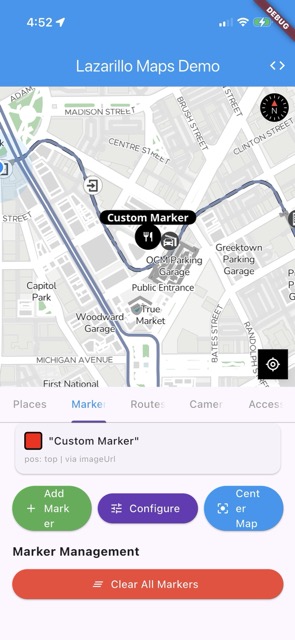 | 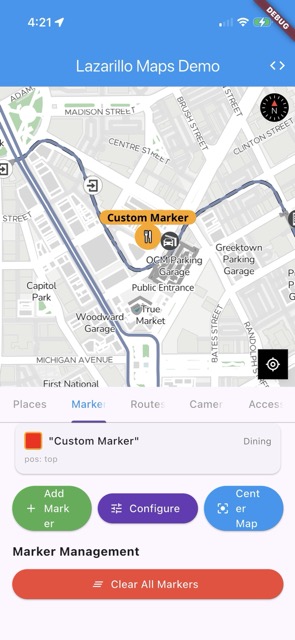 |
The demo app includes four Flutter icon options: Restaurant, Star, Home, and Shopping Cart.
3. Remote Image via URL
Load an icon from an HTTP/HTTPS URL. There are two ways:
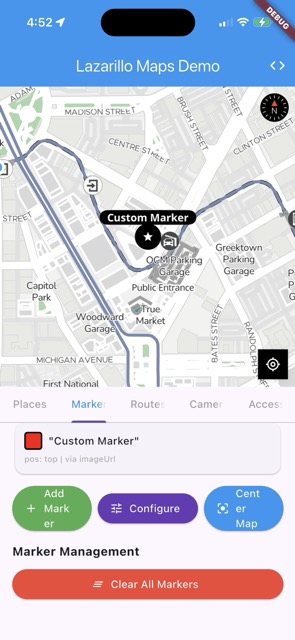
Via the icon field — pass the URL directly as the icon name:
LzAttributeMarker(
  'https://maps.google.com/mapfiles/kml/shapes/star.png',
  coordinate,
  imageSize: 40.0,
  ...
);
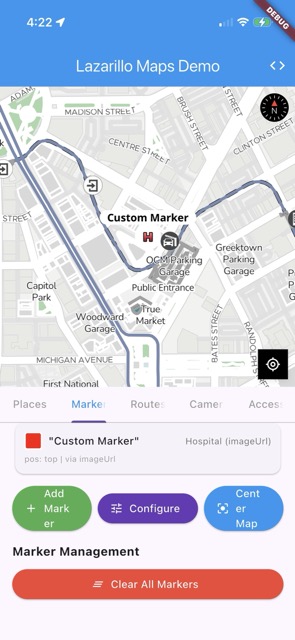
Via the imageUrl field — the icon field acts as a fallback:
LzAttributeMarker(
  'pin', // fallback if URL fails
  coordinate,
  imageUrl: 'https://maps.google.com/mapfiles/kml/shapes/hospitals.png',
  imageSize: 40.0,
  ...
);| Star (URL) | Hospital (imageUrl) | Custom (imageUrl) |
|---|---|---|
 |  | 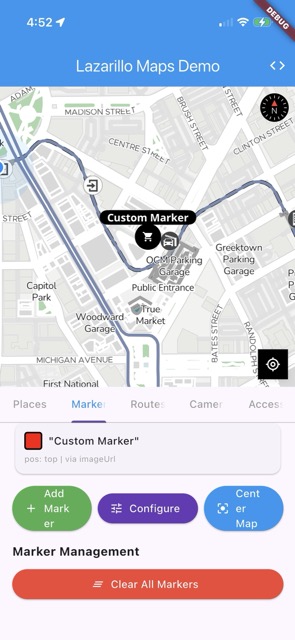 |
Platform notes: On iOS the native SDK uses Kingfisher for URL image loading. On Android it uses Coil. Both support PNG and JPEG. SVG is only supported on Android.
Customization Properties
Visual
| Property | Type | Default | Description |
|---|---|---|---|
imageSize | double? | 18 (iOS) / 120 (Android) | Icon size in logical pixels |
opacity | double? | 1.0 | Marker opacity (0.0–1.0) |
iconColor | String? | — | Hex color for the icon tint |
borderColor | String? | — | Hex color for the icon border |
iconCornerRadius | double? | — | Corner radius (-1 for circle on iOS) |
Text
| Property | Type | Default | Description |
|---|---|---|---|
text | String? | — | Text label next to the icon |
textColor | String? | — | Hex color for the text |
textPosition | TextPosition | — | left, right, top, or bottom |
textFontSize | double? | 14 (iOS) / 12 (Android) | Font size in points |
textFontName | String? | — | Custom font family name |
textHaloColor | String? | — | Outline color around text |
textHaloWidth | double? | — | Outline width |
textHaloBlur | double? | — | Outline blur radius |
Behavior
| Property | Type | Default | Description |
|---|---|---|---|
draggable | bool | false | Allow the user to drag the marker |
isFlat | bool | false | Render flat against the map surface |
Quick Start
import 'package:lazarillo_maps/lazarillo_maps.dart';

// Marker with a remote PNG image
final marker = LzAttributeMarker(
  'pin',
  const LatLng(-33.417733, -70.606573),
  title: 'Star',
  text: 'STAR',
  textColor: '#FFFFFF',
  iconColor: '#2196F3',
  borderColor: '#000000',
  textPosition: TextPosition.right,
  imageUrl: 'https://maps.google.com/mapfiles/kml/shapes/star.png',
  imageSize: 40.0,
);

await lazarilloMapWidget.addMarker(marker);
Text Halo Example
final haloMarker = LzAttributeMarker(
  'pin',
  const LatLng(-33.417733, -70.606573),
  title: 'Halo',
  text: 'HIGHLIGHTED',
  textColor: '#FFFFFF',
  textHaloColor: '#000000',
  textHaloWidth: 2.0,
  textHaloBlur: 1.0,
  textFontSize: 16.0,
  iconColor: '#E91E63',
  textPosition: TextPosition.right,
);
Semi-transparent Flat Marker
final flatMarker = LzAttributeMarker(
  'pin',
  const LatLng(-33.417733, -70.606573),
  title: 'Zone',
  text: 'AREA',
  textColor: '#FFFFFF',
  iconColor: '#9C27B0',
  opacity: 0.5,
  isFlat: true,
  imageSize: 40.0,
);
Running the Example
The example is available in the demo app at example/lib/examples/marker_customization_example.dart. Select Marker Customization from the examples home screen.
Next Steps
- Attribute Markers — Preset-based attribute marker examples
- Image URL Markers — Loading markers from remote URLs
- Place Marker with Logo — Using place logos as marker icons
- Marker Management — Adding, removing, and organizing markers